Using ARIA Labels Like a Pro
One of the first issues any automated a11y tool will flag is missing ARIA labels. And honestly, it’s one of the easiest fixes to make.

Using ARIA Labels Like a Pro
One of the first issues any automated a11y tool will flag is missing ARIA labels. And honestly, it’s one of the easiest fixes to make.
But before going crazy and adding aria-labels to every element, let’s understand their purpose, how they improve a11y, and how to use them without overcomplicating our codebase.
How ARIA Labels Help
Visually impaired users rely on screen readers to navigate our app. These tools read out loud the content of the page and offer shortcuts to move through headings, links, buttons, and form fields.
Here’s a quick example of how that experience works:
ARIA labels help understand what an element is supposed to do, especially when there’s no visible text.
For example, this button has no text:
<button>
  <TrashIcon />
</button>
A screen reader won’t know what it’s for. But with an ARIA label:
<button aria-label="Delete">
  <TrashIcon />
</button>
Now it will announce “Delete button” which is much more helpful.
There’s also
aria-labelledbyandaria-describedby, but we’ll get to those in a bit.
For now, just remember:
No visible text? You probably need a label.
Some common cases:
- Icon-only buttons
- Expand/collapse toggles
- Custom switches or checkboxes
- Floating buttons in mobile (FABs)
- Carousel navigation buttons (next/previous)
- Inputs without a label
When NOT to Use Aria Labels
ARIA labels are helpful, but only when there’s no visible text. If the element already has text that explains what it does, you don’t need a label. In fact, adding one can override the visible text and confuse screen readers.
<button aria-label="next step">Submit Form</button>A screen reader will announce next step instead of Submit Form, which is confusing.
Here’s when to skip aria-label:
- Buttons or links with visible text
- Inputs with proper
<label>elements - Any element where ARIA would just duplicate existing content
- Elements already handled by
aria-labelledby
aria-label VS aria-labelledby VS aria-describedby
A sister attribute to aria-label is aria-labelledby. It helps avoid duplication when descriptive text already exists on the page.
For example:
<h3 id="total-label">Total amount</h3>
<div aria-label="Total amount">42€</div>
This works, but the same text is written twice. A cleaner version would be:
<h3 id="total-label">Total amount</h3>
<div aria-labelledby="total-label">42€</div>
Now the div uses the existing text as its label. One source of truth, no duplication.
aria-describedby works similarly, but it’s used for extra context, not naming.
<span id="additional-info">We’ll never share your email.</span>
<input
  type="email"
  aria-label="Email address"
  aria-describedby="additional-info"
/>
A screen reader will announce:
Email address. We’ll never share your email.
Keep It Clean
ARIA labels should make things more clear, not more noisy. Overusing them risks turning helpful markup into a mess of redundant or conflicting info.
As a guideline:
- **Don’t label decorative icons
**If an icon doesn’t add meaning, hide it from assistive tech witharia-hidden="true"oralt=""(for images). - **Avoid repeating visible text
**If the text is already in the UI, don’t duplicate it in aria-label. - **Don’t stack ARIA attributes
**When both are used, aria-label takes priority, so aria-label-by is redundant. - **Be intentional
**Only add a label if it improves the experience for screen reader users.
Clean ARIA means less noise, fewer bugs, and a better experience for everyone. And don’t forget , these attributes live in the codebase. If we overdo it, we’re the ones maintaining the mess later.
Tools That Help
You don’t have to catch every issue manually. These tools make working with ARIA (and accessibility in general) way easier:
- eslint-plugin-jsx-a11yLints the code for common accessibility issues, including missing or misused ARIA labels. A must-have in any project.
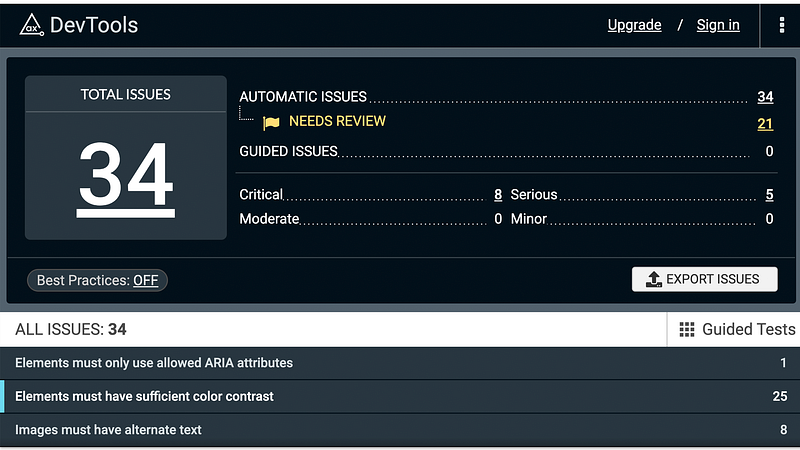
- Axe DevToolsA browser extension that scans the app for a11y issues and gives clear, actionable feedback. Works great in Chrome and Firefox.
- Screen readers (VoiceOver, NVDA, JAWS)Nothing beats testing like a real user. Learning to use a screen reader takes a couple of days, but it’s extremely insightful.
Conclusion
ARIA labels are one of the simplest ways to improve accessibility, but they only work when used intentionally. Don’t add them just to silence a warning. Add them to make your app easier to understand for people who can’t see it.
At the same time, it’s important to keep the markup clean and avoid unnecessary complexity and duplication. The first step to an accessible web is semantic markup. So let HTML do its job and only use ARIA labels where they improve the experience.
Keep reading