Recreating the Queens Game in Vue
Recently I found myself addicted to the daily challenge of Queens. A game that LinkedIn introduced. Implementing a clone of this game using…

Recreating the Queens Game in Vue
Recently I found myself addicted to the daily challenge of Queens. A game that LinkedIn introduced. Implementing a clone of this game using Vue was a challenge that I genuinely enjoyed and helped me understand the game better.
The game
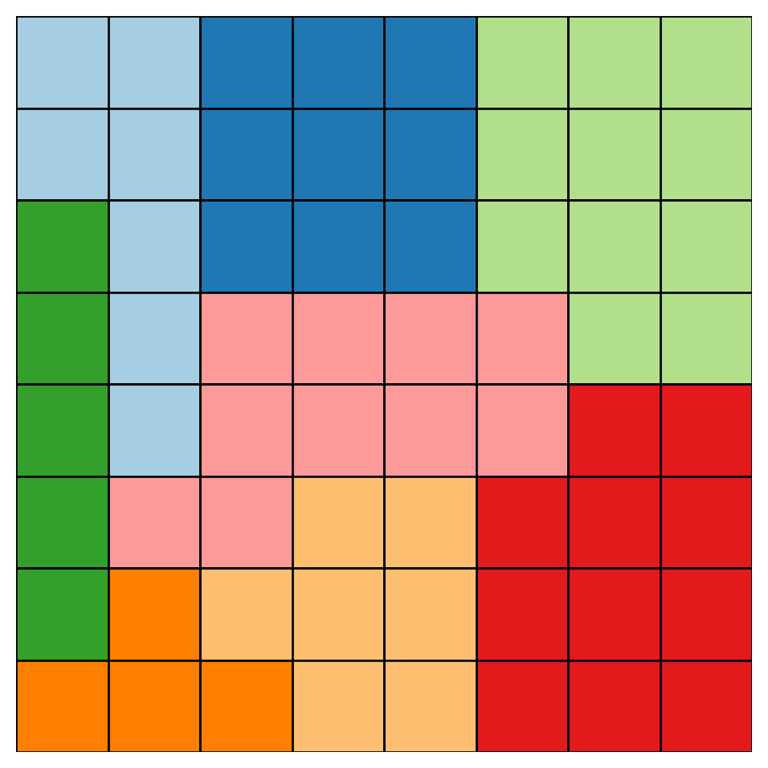
Queens is a puzzle game that combines elements of Minesweeper, Chess and Sudoku. Played on an 8x8 grid, the objective is to place eight Queens on the board according to specific rules:
- One Queen per row
- One Queen per column
- One Queen per coloured section
- No two Queens can be placed in adjacent diagonal cells
The challenge is to satisfy all these constraints at the same time.
If you want to follow along create a new project with
npm create vue@latest
Modelling Initial State - First Attempt
My initial approach was to randomly generate the initial board only to realise that this way the game was too easy. The real challenge is with boards with only one solution. After reverse engineering the LinkedIn and other solutions I realised they all use a predefined initial board each time.
Modelling Initial State - Second Attempt
A more suitable approach is using a 2 dimension array with the colour being the content of each cell.
First, will have a map that associates a number with a color
export const cellColors = {
  1: "#007B6C",
  2: "#D18B00",
  3: "#C75D00",
  4: "#0044CC",
  5: "#CC0000",
  6: "#CCCC00",
  7: "#008B8B",
  8: "#8B008B",
};
and then we will have a 2 dimension array to represent the initial state
const sectionGrid = [
  [1, 1, 2, 2, 2, 3, 3, 3],
  [1, 1, 2, 2, 2, 3, 3, 3],
  [4, 1, 2, 2, 2, 3, 3, 3],
  [4, 1, 5, 5, 5, 5, 3, 3],
  [4, 1, 5, 5, 5, 5, 6, 6],
  [4, 5, 5, 7, 7, 6, 6, 6],
  [4, 8, 7, 7, 7, 6, 6, 6],
  [8, 8, 8, 7, 7, 6, 6, 6],
];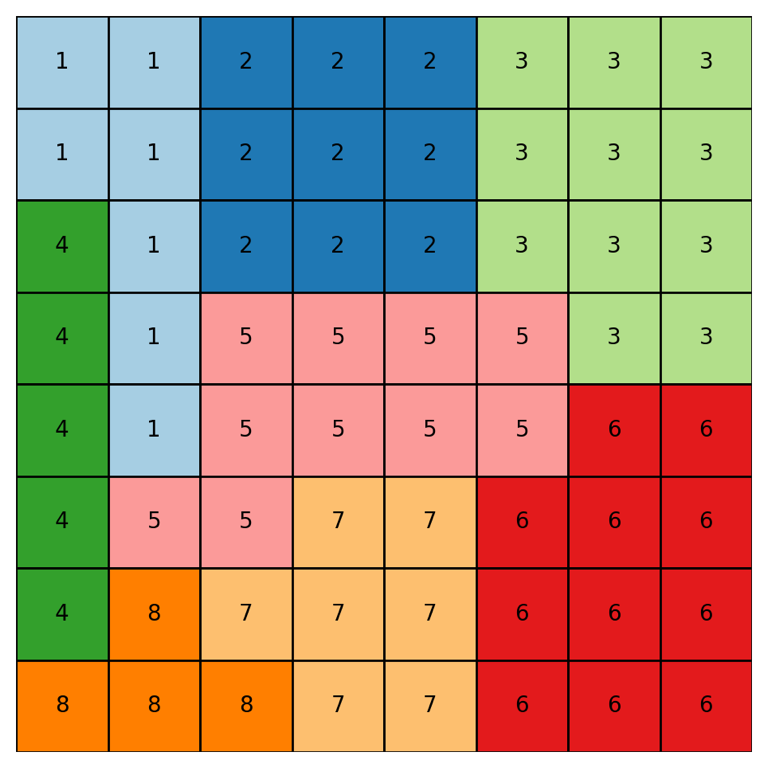
We now have a representation of our initial state and can start with the game board.
Game Board
Before creating the board let’s create a smaller component for each cell.
<!-- GridCell.vue -->
<script setup>
defineProps(["content", "color"]);
</script>

<template>
  <div class="cell" :style="{ backgroundColor: color }">
    <img v-if="content === 'queen'" src="@/assets/crown.png" class="queen"  alt="Crown"/>
    <span v-if="content === 'marked'">×</span>
  </div>
</template>

<style scoped>
.cell {
  font-size: 24px;
  border: 1px solid #000;
  display: flex;
  align-items: center;
  justify-content: center;
  cursor: pointer;
  user-select: none;
}

.queen {
  width: 24px;
  height: 24px;
}
</style>
This presentational component accepts two parameters. The cell content can be a queen, an X mark or null if empty. It also accepts the colour of the cell.
Now to create the game board we just need two nested loops around GridCell components. Additionally, we are showing a WinMessage component when the game is finished and we have a button to clear the board.
Most of the complexity is abstracted inside the createGame composable that we will tackle later.
The board uses CSS grid for alignment.
<!-- GameBoard.vue -->
<script setup>
import GridCell from "@/features/game/components/GridCell.vue";
import { createGame } from "@/features/game/composables/createGame";
import WinMessage from "@/features/game/components/WinMessage.vue";
import AppButton from "@/components/AppButton.vue";
import { cellColors } from "@/features/game/data/cellColors.js";

const { boardState, gameWon, isValidQueen, toggleCell, clearBoard } =
  createGame();
</script>

<template>
  <div class="game-board">
    <template v-for="(row, rowIndex) in boardState">
      <GridCell
        v-for="(cell, cellIndex) in row"
        :key="`${rowIndex}-${cellIndex}`"
        :content="cell.content"
        :color="cellColors[cell.section]"
        :invalid="isValidQueen(rowIndex, cellIndex)"
        @click="toggleCell(rowIndex, cellIndex)"
      />
    </template>
  </div>
  <WinMessage v-if="gameWon" />
  <AppButton @click="clearBoard">Clear Board</AppButton>
</template>

<style scoped>
.game-board {
  display: grid;
  justify-content: center;
  grid-template-columns: repeat(8, 42px);
  grid-template-rows: repeat(8, 42px);
  border: 1px solid #000;
}
</style>
Let’s tackle the createGame composable next.
First, we will need a way to hold the state of each cell. This is why we will create a new variable named boardState with the same structure as the board and the additional content property with [Null, marked or queen] as possible values.
We will also have an array to track all the coordinates of all the queens on the board. This is a small optimisation to avoid searching every cell to determine if a queen is valid.
The toggleCell function rotates between the three possible states of a cell with the addition of keeping track of the queens in a separate array. After each change, the board is re-validated. The validation code is omitted for now.
The clearBoard function resets the boardState and queens.
isValidQueen accepts the coordinates of a cell and returns if there is a valid queen inside.
Lastly to determine if the game is over we just need to count the number of valid queens inside the corresponding array. This needs to be a computed value.
// composables/createGame.js
import { ref, computed } from "vue";
import { sectionGrid } from "@/features/game/data/sectionGrid";

function createBoard() {
  return sectionGrid.map((row) =>
    row.map((section) => ({
      content: null,
      section,
    })),
  );
}

export function createGame() {
  const boardState = ref(createBoard());
  const queens = ref([]);

  function toggleCell(rowIndex, cellIndex) {
    const cell = boardState.value[rowIndex][cellIndex];

    if (!cell.content) {
      cell.content = "marked";
    } else if (cell.content === "marked") {
      cell.content = "queen";
      queens.value.push({ row: rowIndex, col: cellIndex, valid: true });
    } else {
      cell.content = null;
      queens.value = queens.value.filter(
        (queen) => queen.row !== rowIndex || queen.col !== cellIndex,
      );
    }

    validateBoard();
  }

  function validateBoard() {
    // TODO
  }

  function clearBoard() {
    boardState.value = boardState.value.map((row) =>
      row.map((cell) => ({ ...cell, content: null })),
    );
    queens.value = [];
  }

  function isValidQueen(rowIndex, cellIndex) {
    return queens.value.some(
      (queen) =>
        queen.row === rowIndex && queen.col === cellIndex && !queen.valid,
    );
  }

  const gameWon = computed(() => {
    if (queens.value.length !== sectionGrid.length) {
      return false;
    }

    return queens.value.every((queen) => queen.valid);
  });

  return {
    boardState,
    toggleCell,
    queens,
    isValidQueen,
    clearBoard,
    gameWon,
  };
}
Validations
Let’s backtrack and implement the validations which are probably the most complicated aspect of this application. After every change we need to determine if any of the winning conditions are violated and mark those queens as invalid. We have four different functions validateRow, validateColumn, validateSection and checkDiagonalConflicts. Each one is responsible for checking one of the game restrictions.
For example validateRow will make sure two queens don’t exist in the same row and mark both of them as invalid if they do.
// composables/createGame.js
// ...

function validateBoard() {
  resetValidations();

  for (const queen of queens.value) {
    const { row, col } = queen;
    const cell = boardState.value[row][col];
    const rowValid = validateRow(row);
    const columnValid = validateColumn(col);
    const sectionValid = validateSection(cell.section);
    const diagonalValid = checkDiagonalConflicts(queen);

    queen.valid = rowValid && columnValid && sectionValid && diagonalValid;
  }
}

function resetValidations() {
  queens.value.forEach((queen) => (queen.valid = true));
}

function validateRow(rowIndex) {
  const queensInRow = queens.value.filter((queen) => queen.row === rowIndex);

  if (queensInRow.length > 1) {
    queensInRow.forEach((queen) => (queen.valid = false));
    return false;
  }
  return true;
}

function validateColumn(columnIndex) {
  // TODO
}

function validateSection(section) {
  // TODO
}
function checkDiagonalConflicts(queen) {
  // TODO
}
You can also check the implementation of validateColumn, validateSection and
[checkDiagonalConflicts](https://github.com/fadamakis/vue-queens/blob/main/src/features/game/composables/createGame.js#L53)if you want.
Timer
Another feature of the application is tracking the time to finish each board. We will create a small presentation component that shows the elapsed time.
<!-- AppTimer.vue -->
<template>
  <div class="timer">⏱ Time: {{ formattedTime }}</div>
</template>

<script setup>
import { useTimer } from "../composables/useTimer";

const { formattedTime } = useTimer();
</script>

<style scoped>
.timer {
  font-size: 13px;
  margin: 10px 0;
}
</style>
Once more a composable is used to hold the state. It exposes functionality to start, stop and reset the timer.
import { ref, computed } from "vue";

const time = ref(0);

export function useTimer() {
  let timerInterval = null;

  const startTimer = () => {
    if (timerInterval) return;
    timerInterval = setInterval(() => {
      time.value++;
    }, 1000);
  };

  const stopTimer = () => {
    clearInterval(timerInterval);
    timerInterval = null;
  };

  const resetTimer = () => {
    time.value = 0;
  };

  const formattedTime = computed(() => {
    const minutes = Math.floor(time.value / 60);
    const seconds = time.value % 60;
    return `${minutes.toString().padStart(2, "0")}:${seconds.toString().padStart(2, "0")}`;
  });

  return {
    time,
    formattedTime,
    startTimer,
    stopTimer,
    resetTimer,
  };
}
We now need to update thegameBoard component to use this timer. The final implementation is the following.
We start the timer when the component is mounted and stop it when the game is won.
<script setup>
import { onMounted } from "vue";
import GridCell from "@/features/game/components/GridCell.vue";
import { createGame } from "@/features/game/composables/createGame";
import WinMessage from "@/features/game/components/WinMessage.vue";
import AppTimer from "@/features/timer/components/AppTimer.vue";
import { useTimer } from "@/features/timer/composables/useTimer";
import AppButton from "@/components/AppButton.vue";
import { cellColors } from "@/features/game/data/cellColors.js";

const { boardState, gameWon, isValidQueen, toggleCell, clearBoard } =
  createGame();

const { startTimer, stopTimer, resetTimer } = useTimer();

function handleToggleCell(rowIndex, cellIndex) {
  toggleCell(rowIndex, cellIndex);

  if (gameWon.value) {
    stopTimer();
  }
}

function resetGame() {
  clearBoard();
  resetTimer();
}

onMounted(() => {
  startTimer();
});
</script>

<template>
  <div class="game-board">
    <template v-for="(row, rowIndex) in boardState">
      <GridCell
        v-for="(cell, cellIndex) in row"
        :key="`${rowIndex}-${cellIndex}`"
        :content="cell.content"
        :color="cellColors[cell.section]"
        :invalid="isValidQueen(rowIndex, cellIndex)"
        @click="handleToggleCell(rowIndex, cellIndex)"
      />
    </template>
  </div>
  <WinMessage v-if="gameWon" />
  <AppTimer />
  <AppButton @click="resetGame">Reset Game</AppButton>
  <AppButton @click="clearBoard">Clear Board</AppButton>
</template>
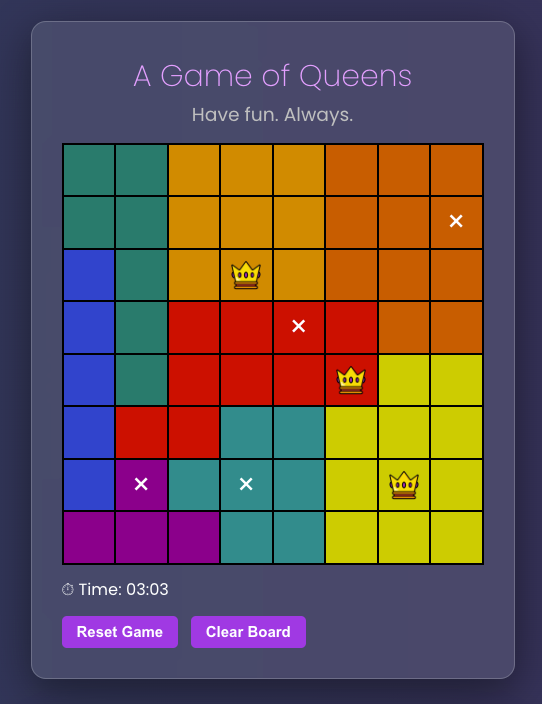
The final result is a functional clone of the game of Queens. You can check it out here.
Conclusion
Here we go! A reactive front-end framework like Vue does most of the heavy lifting to keep our state in sync but we still need to implement most of the logic ourselves. I hope you found some value in this article and have a better understanding of how to create a game like this using Vue.
The next steps are to implement multiple levels, hints and daily challenges. We will do that in future articles. Make sure to subscribe!
You can play the game or explore the codebase on GitHub.